How to Edit Templates for Quality Management Documentation in SharePoint Libraries and What to Consider
Document templates make it easier to create documentation in quality management. By using templates, you can ensure that some requirements of the quality management standard are met in your documentation. This documentation is needed in quality management so that production processes run as planned.
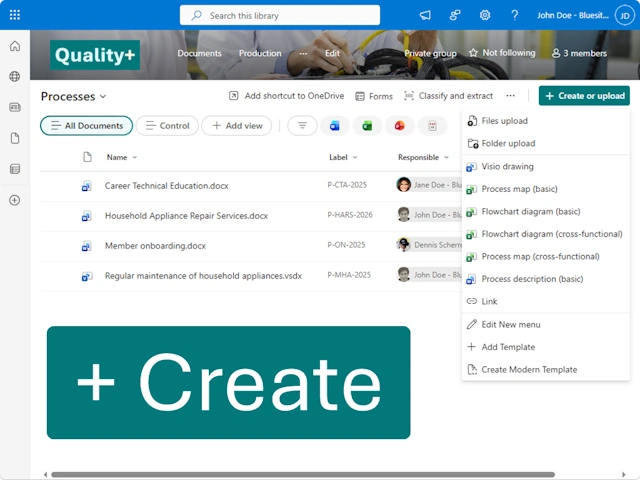
Excel, PowerPoint, and Word templates can be found in SharePoint libraries under the Create or Upload menu. This makes it easy for employees to locate the right document template and ensures that completed documentation is saved in the correct location. Updates to the quality management system—whether due to revised standards, new technologies, or shifts in company culture—requires an update to document template in SharePoint.
When you edit your document templates, you should consider a few things.
- To edit a template associated with a document library, you need local installed apps—but there’s a hack.
- When you Delete a document template from the document library, you’re unable to recover it from the recycle bin.
- Members and owners find document templates under the + Create or upload button on the right edge.
How to Edit a Document Template in a SharePoint Library
If you are a member or owner of a SharePoint Website, you can start new documents using templates from the + Create or upload menu. + Create or upload is not visible to visitors.
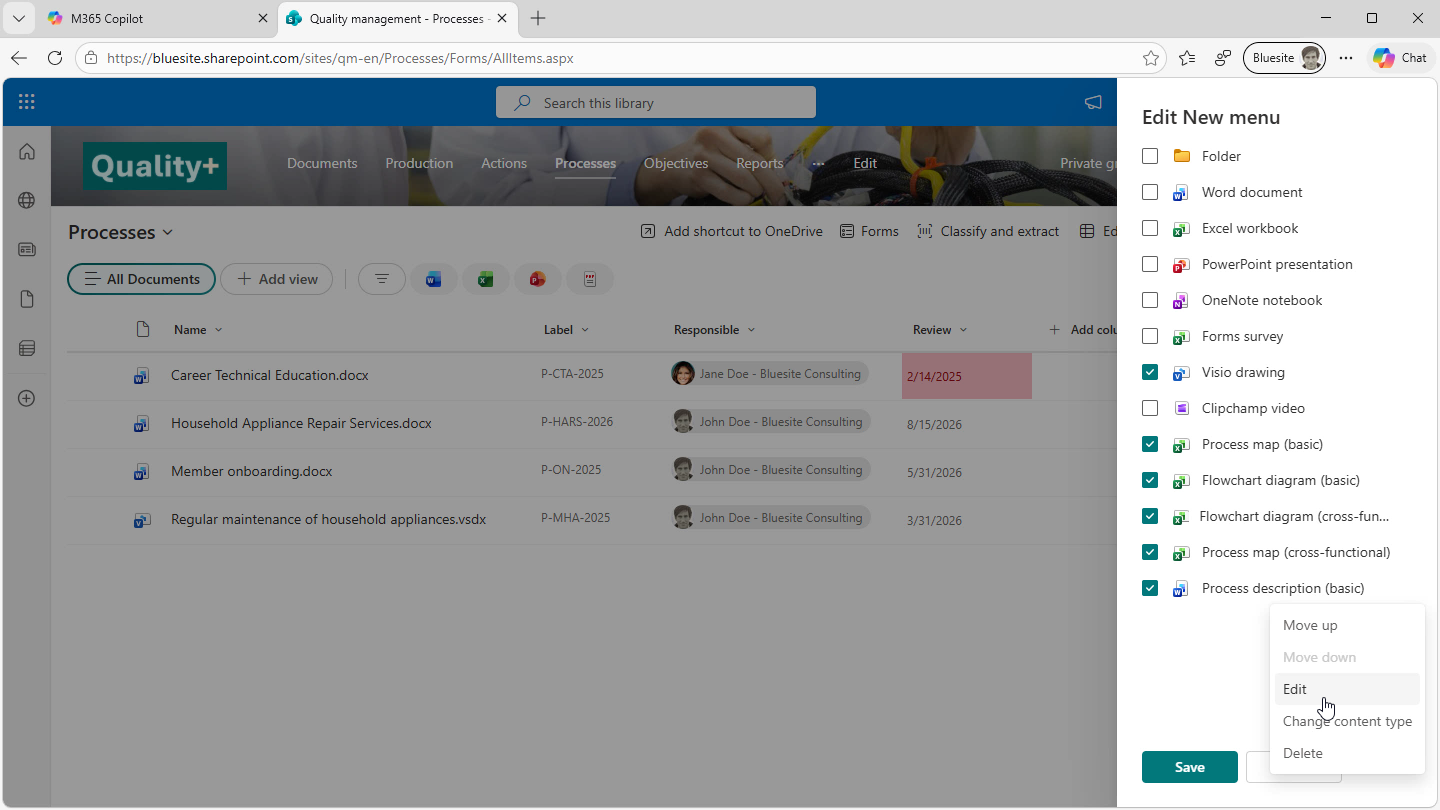
To edit a document template associated with a document library, click on Edit New menu in the + Create or upload menu. You need the app (Excel, PowerPoint, and Word) installed on your Windows desktop device. Regardless of the library settings that allow documents to open in the browser, editing document templates will always open Excel, PowerPoint, or Word desktop app. This is consistent with Office for Mac.
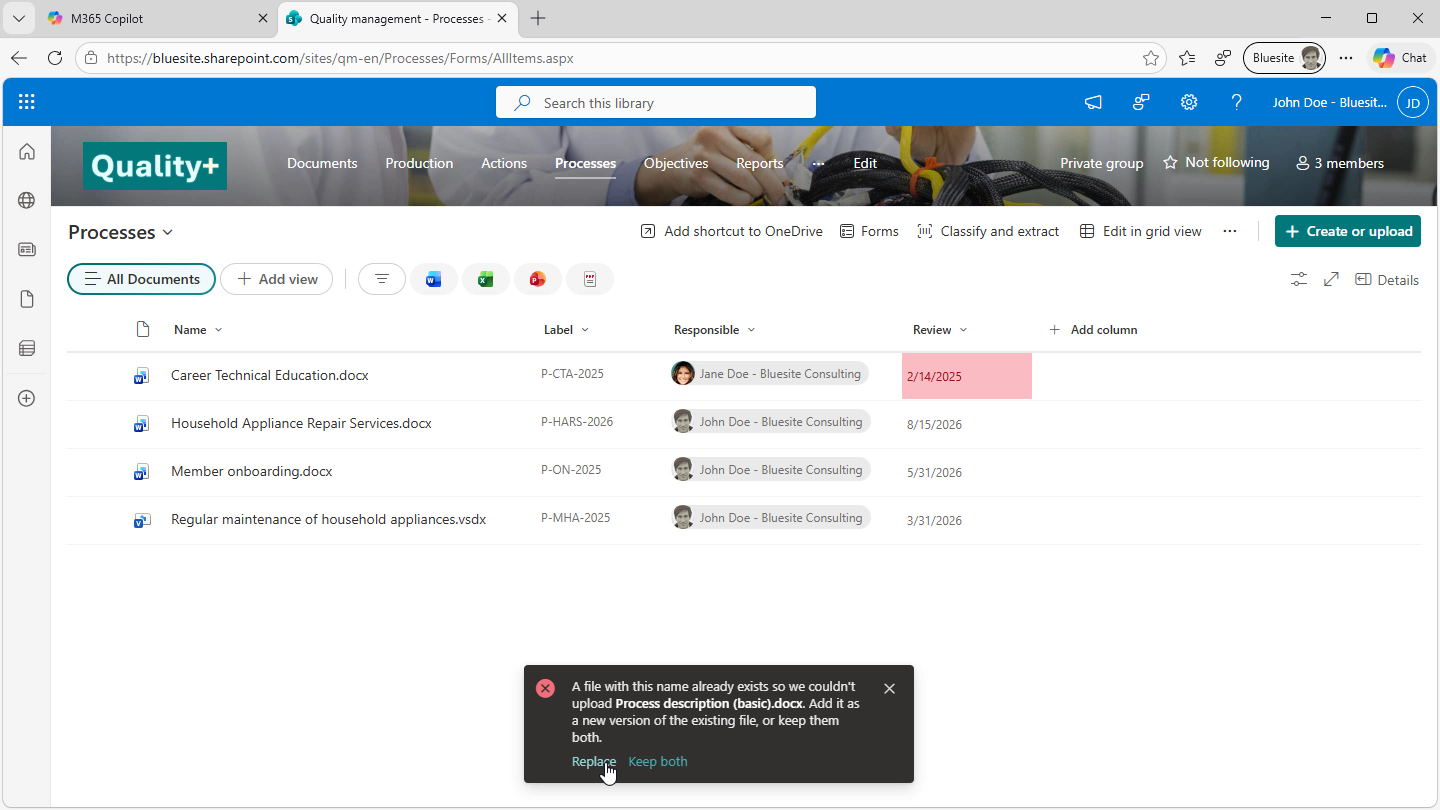
👉 If you can´t use Excel, PowerPoint, or Word, because you are working on Linux, Android or you don´t licensed for it (Microsoft 365 Business Basic does not include desktop apps), you can overwrite an existing document template. Just create a document with the same name as the existing document template. SharePoint will prompt you to replace the document template, as you’ll see in the next section.
Replace Templates Associated with a SharePoint Document Library
When upload an updated version of a document template with the same name, the original will be replaced. To confirm, you must click Replace during the upload process.
If you want to keep previous versions of your own templates, you can store document templates in a designated library. Templates in the New menu do not support version control that is directly accessible to SharePoint users, despite any upload messages suggesting otherwise.
See, if you want to view a document template's version history in the Excel, PowerPoint, or Word file menu, you'll see the message “Problem getting version history.” As a side note, since Bluesite Consulting specializes in ISO 9001 with Microsoft 365, we are not aware of any requirements in ISO 9001:2015 that mandate the retention of earlier document templates. Ultimately, it depends on the internal rules your company has established regarding this matter.
Hide or Remove Document Templates from SharePoint Libraries
If you would like to temporarily not display one of your document templates in the + Create or upload menu, you can do that with a simple checkbox. Simply uncheck the box in front of the template and click Save at the bottom to hide it from the + Create or upload menu.
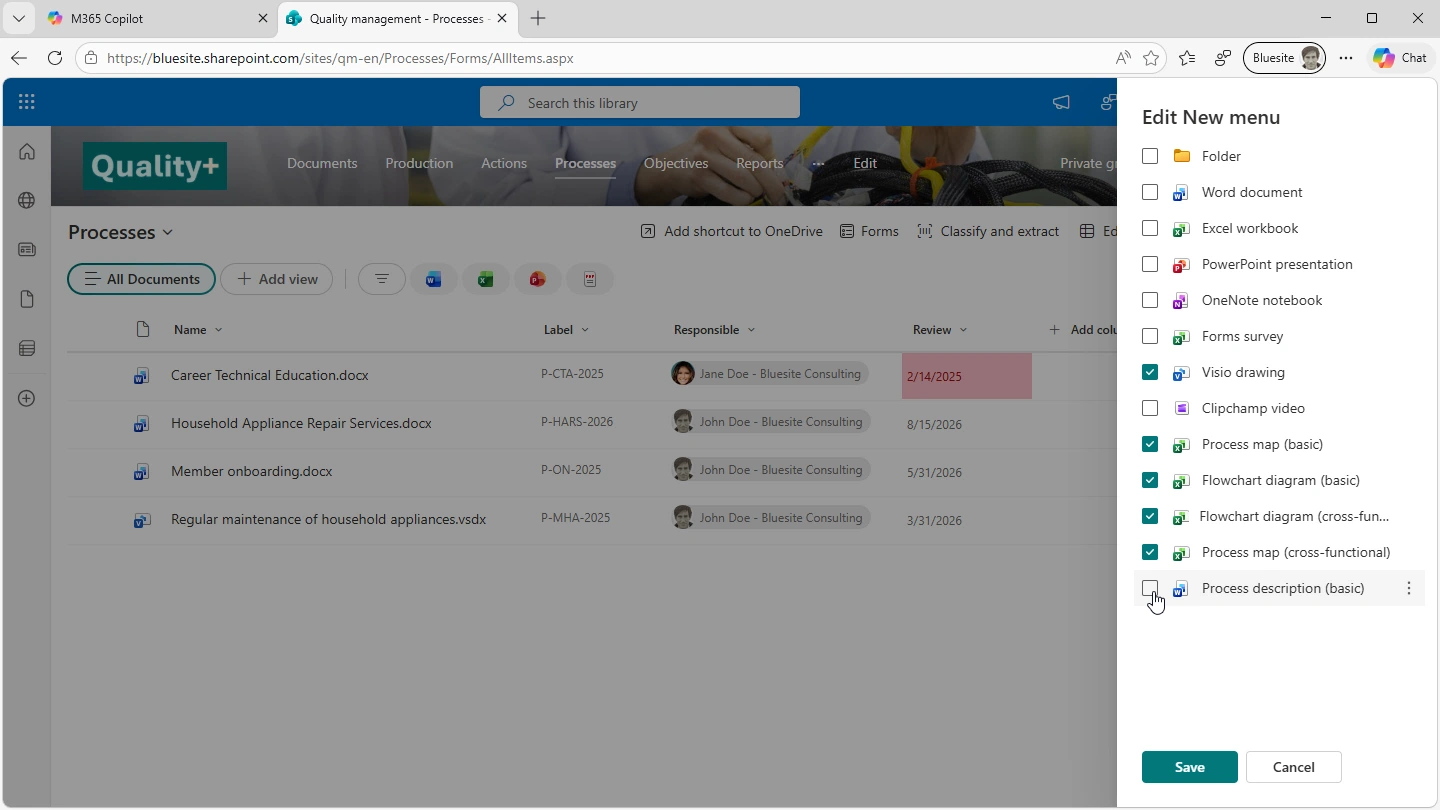
If you´d like to permanently remove a template from the + Create or upload menu, click on … to the right of the template, and Delete. See Screenshot - Edit New menu in SharePoint Online document libraries.
This will move the deleted template from the + Create or upload menuto the recycle bin, where it will be held for 30 to 93 days (30 members or 93 days for owners of the SharePoint site). But, following testing in March 2026 you can´t restore your templates from the recycle bin. Don´t delete document templates from the + Create or upload menu—better hide them as described above.
References
Learn More
Where in SharePoint document libraries are the document templates stored?Document templates associated with document library are stored in the hidden folder Forms. You can see this folder in the column Original Location in the recycle bin, and in the Word desktop app file name menu.
What are “Modern Templates” in SharePoint document libraries?“Create Modern Template” is shown in your “+ Create or upload” menu if your IT staff have enabled document processing services. Use modern templates for standard business documents, such as contracts, statements of work and service agreements, where the resulting documents are not quite different from each other.
How can I rename a template?Templates in the “Create or upload” menu of a SharePoint library cannot be renamed directly. To change the name, you must upload the file as a new template with the desired name and then delete the original template from the menu.
Templates in the SharePoint Quality Management Site
Bluesite Consulting recommends in its SharePoint solution for quality management with Microsoft 365, creating at least three libraries:
- Production, Service, or Consulting – depending on your industry
- Processes
- Reports
When adding (uploading) templates, pay close attention to the file name and file extension:
Templates in SharePoint libraries are not typical Excel templates (.xlst), PowerPoint templates (.potx), or Word templates (.dotx). If you want to add a document, Excel workbook, or presentation to a SharePoint library as a template, save the files with the DOCX, PPTX, or XLSX file extensions. Using the template file extensions will cause users to receive an error message when using the templates.
Do not name your templates “Template” in the Create or Upload menu. Name your templates according to the result. For example, a template for work instructions should appear as “Work Instruction”—so that’s what you should name the file. When choosing the name, consider what documentation managers in SharePoint will click: “Create or Upload,” “Work Instruction.”