Troubleshooting Power Automate Flows for SharePoint Libraries and Lists
Discover reliable solutions for troubleshooting Power Automate flows in SharePoint libraries and lists. This article guides you step-by-step through identifying and resolving issues with reminder flows, ensuring you can quickly find and fix any problems that may arise. With expert recommendations and practical tips, you can trust this resource to help you restore seamless automation and avoid common pitfalls when managing document reminders in SharePoint.
You will receive an email with the subject "Warning! One of your flows has been disabled." from Microsoft Power Automate
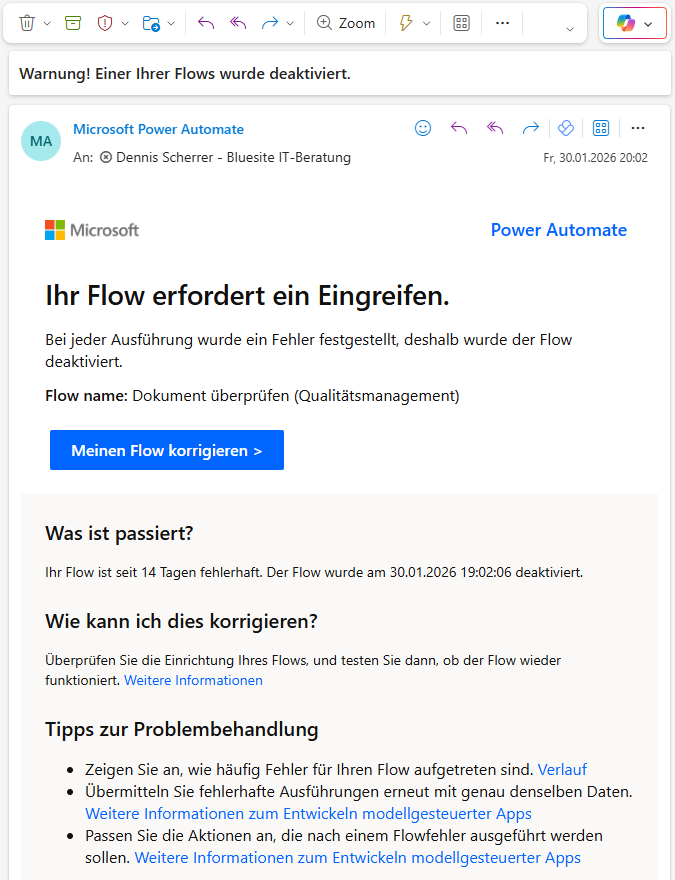
You receive this email when you have selected “Automate”, “Flows”, “Set a reminder” for a column with a date in a SharePoint document library.
Error Analysis in Power Automate
Reminder flows are listed in the Cloud flows tab, under My flows in Power Automate.
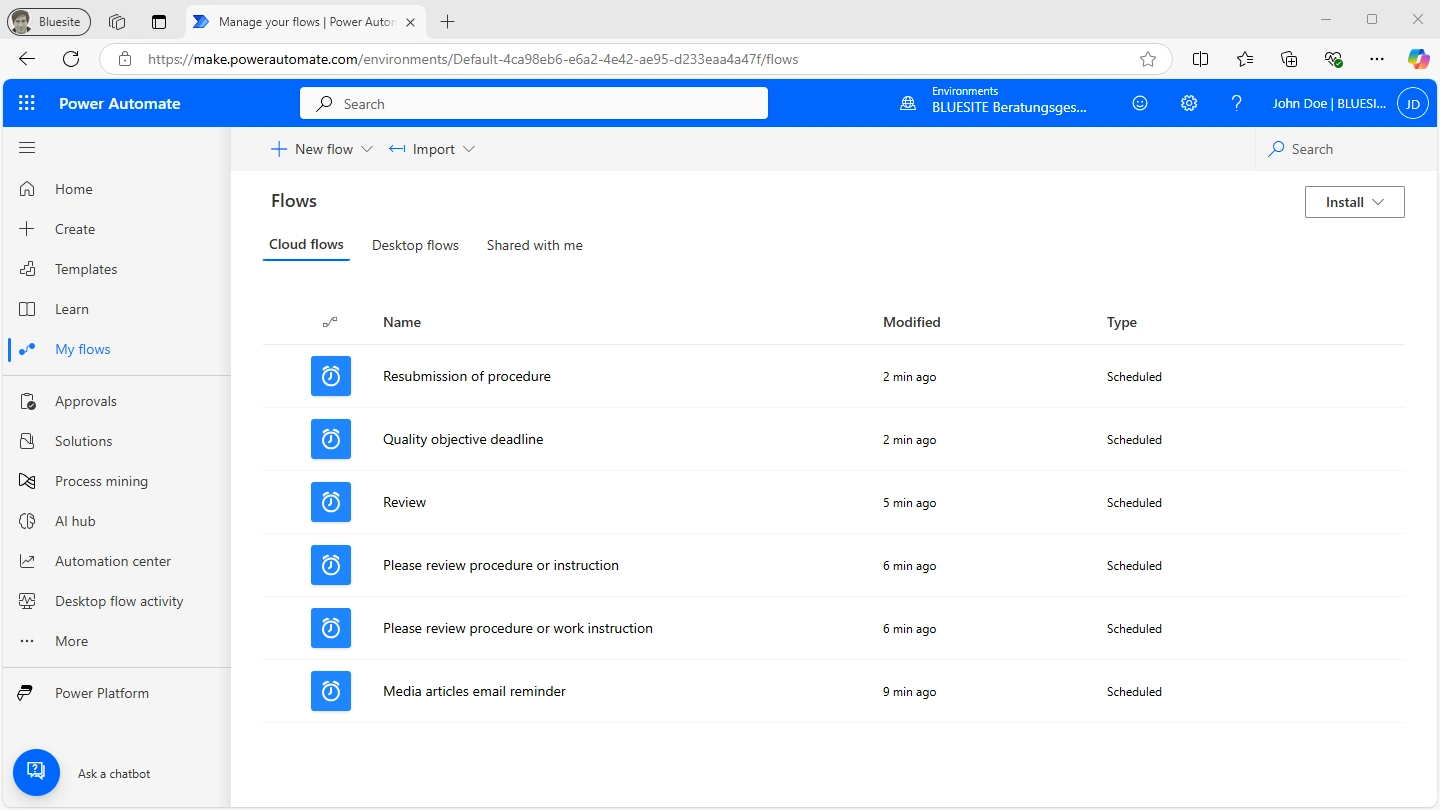
You also can't see if a flow is failed in this list. To identify a broken reminder flow, you need to take a close look at each flow individually by following the link in the e-mail from Microsoft Power Automate.
Solution – Create a Rule in the Library
Instead of spending a lot of time analyzing flow errors, Bluesite Consulting recommends creating a rule in the SharePoint document library. It’s better to set up a rule with the condition “A date is approaching” rather than using the “Set a reminder” flow type!
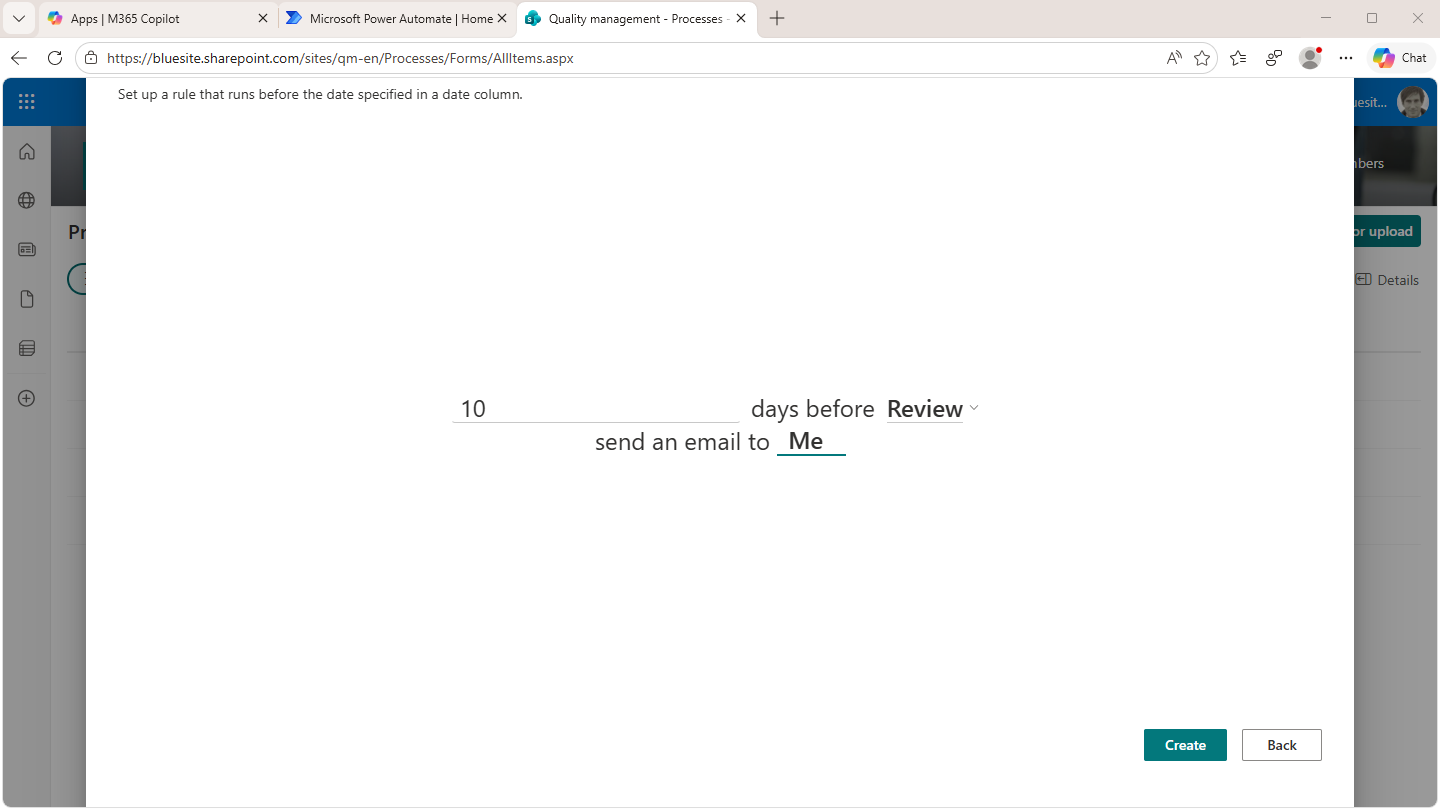
In Bluesite Consulting's SharePoint QMS, all automatic reminders have been replaced by rules instead of flows. According to Bluesite Consulting's analysis, rules offer the following advantages over Power Automate flows for ISO 9001 document control:
- Rules are managed directly in the library's command bar, making it more organized than Power Automate web pages and preventing accidental duplication of flows.
- All members and owners can create and modify rules in the command bar, so you don’t need to grant colleagues additional permissions to edit a flow. This makes rules easier to manage than flows.
- Microsoft 365 subscribers receive 10,000 free “Microsoft Power Automate Free” licenses with limited functionality (for example, you cannot share flows). Library rules are included with a Microsoft 365 subscription.
Possible Cause – Deleted SharePoint Library
The cause may be the deletion of a SharePoint team site or the deletion of a SharePoint document library for which you had set a reminder with (Power) Automate. In this case, the explanation is that when a document library is deleted, a flow for a document due date or expiration date reminder is not automatically deleted. Power Automate continues to run the flow for this, but no longer finds the document library for it.
In the run history, the status is always Successful, even for flows for reminders in deleted document libraries.
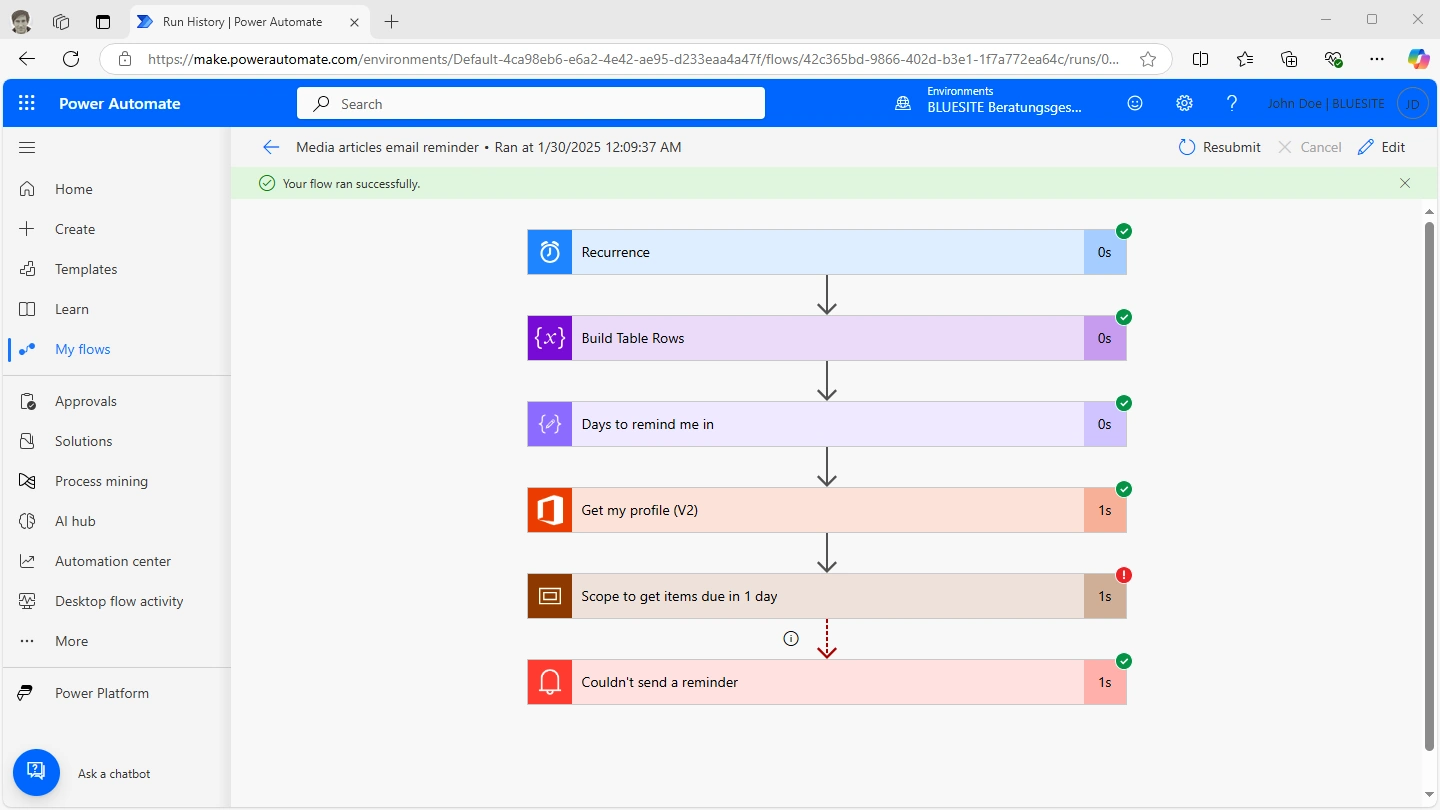
You can only see that a reminder flow fails because the document library has been deleted in the details of the respective execution: The step Scope to get items due in x day is marked with a red warning.
Under step Get list name by HTTP request it says Notfound. Check the URL in the Site Address field.
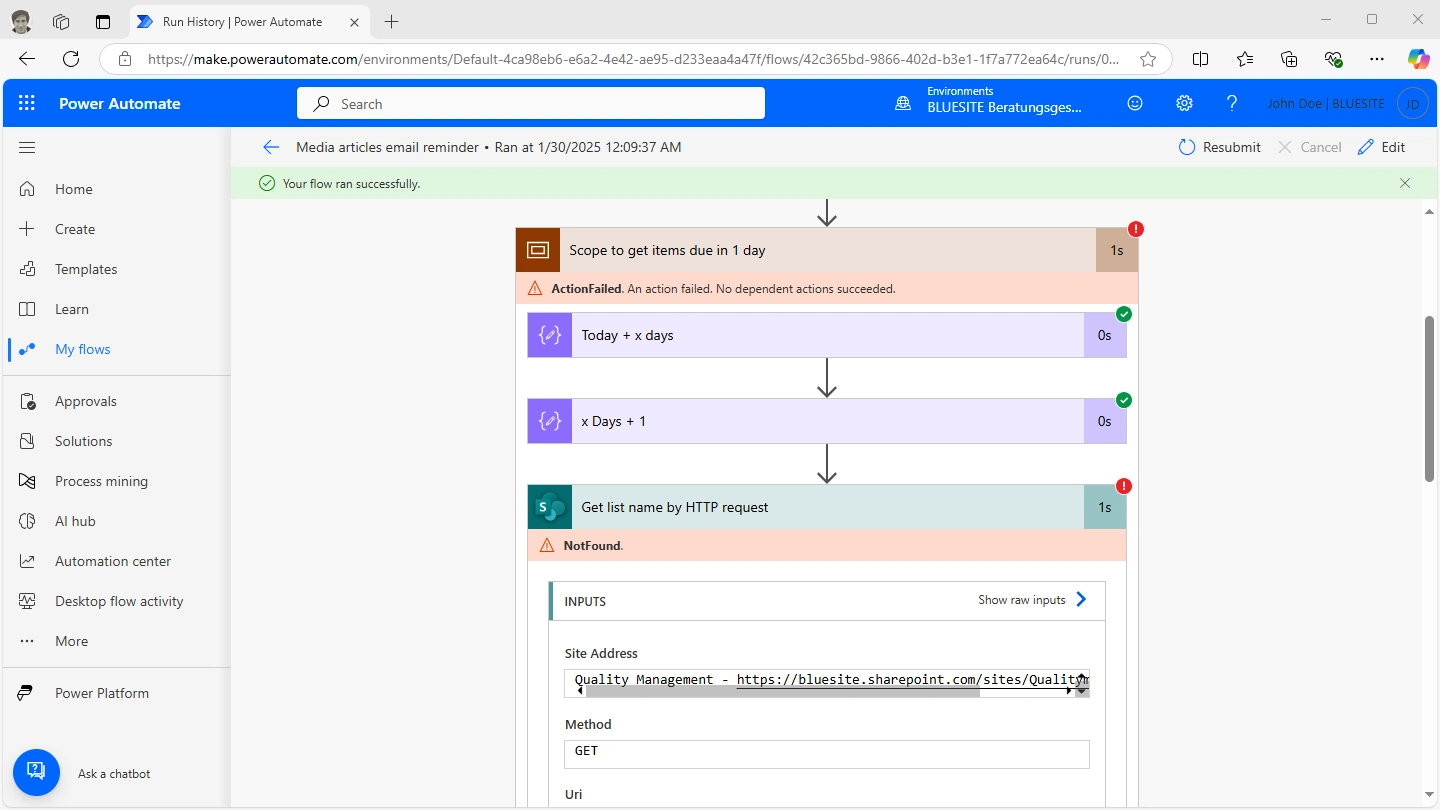
Use a web browser to check the URL in the field under Site address – you'll probably see a 404 Not found HTTP error. Compare this address with the address of the deleted SharePoint sites or document libraries.