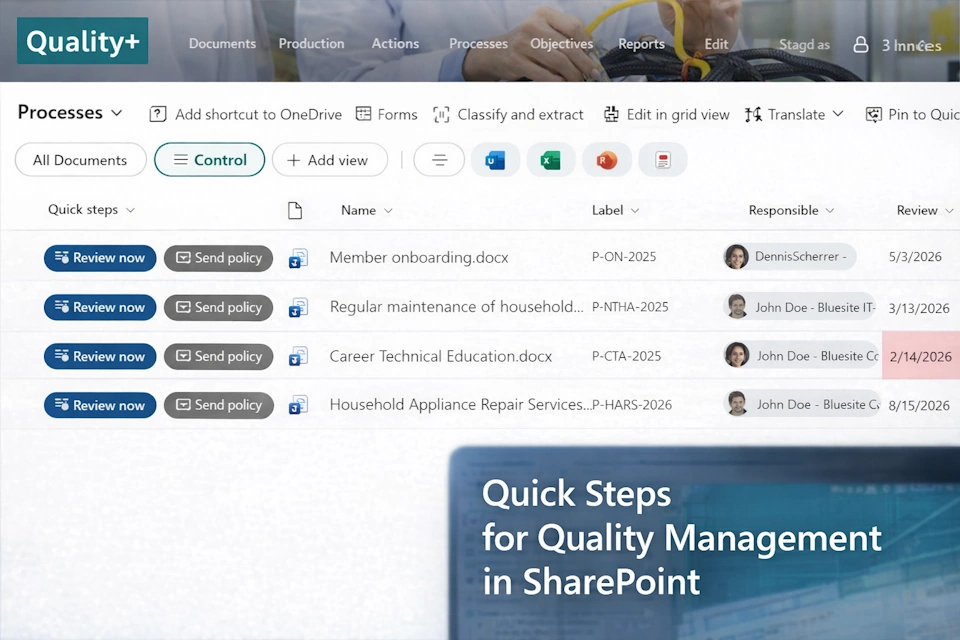
How Quality Managers Automate ISO 9001 Document Control with SharePoint Quick Steps
Automate ISO 9001 document control with SharePoint Quick Steps. Practical, real‑world samples that help quality managers streamline reviews, notifications, and daily QMS work.
Using Quick steps in a document library or a list, you quality managers automate commands and actions within your quality management system build on SharePoint Online. Microsoft introduced the Quick step feature 2025. It saves you time in choosing fields, typing or selecting values and even copying and pasting hyperlinks to documents or list items. Bluesite Consulting identified the following samples in document control for quality management:
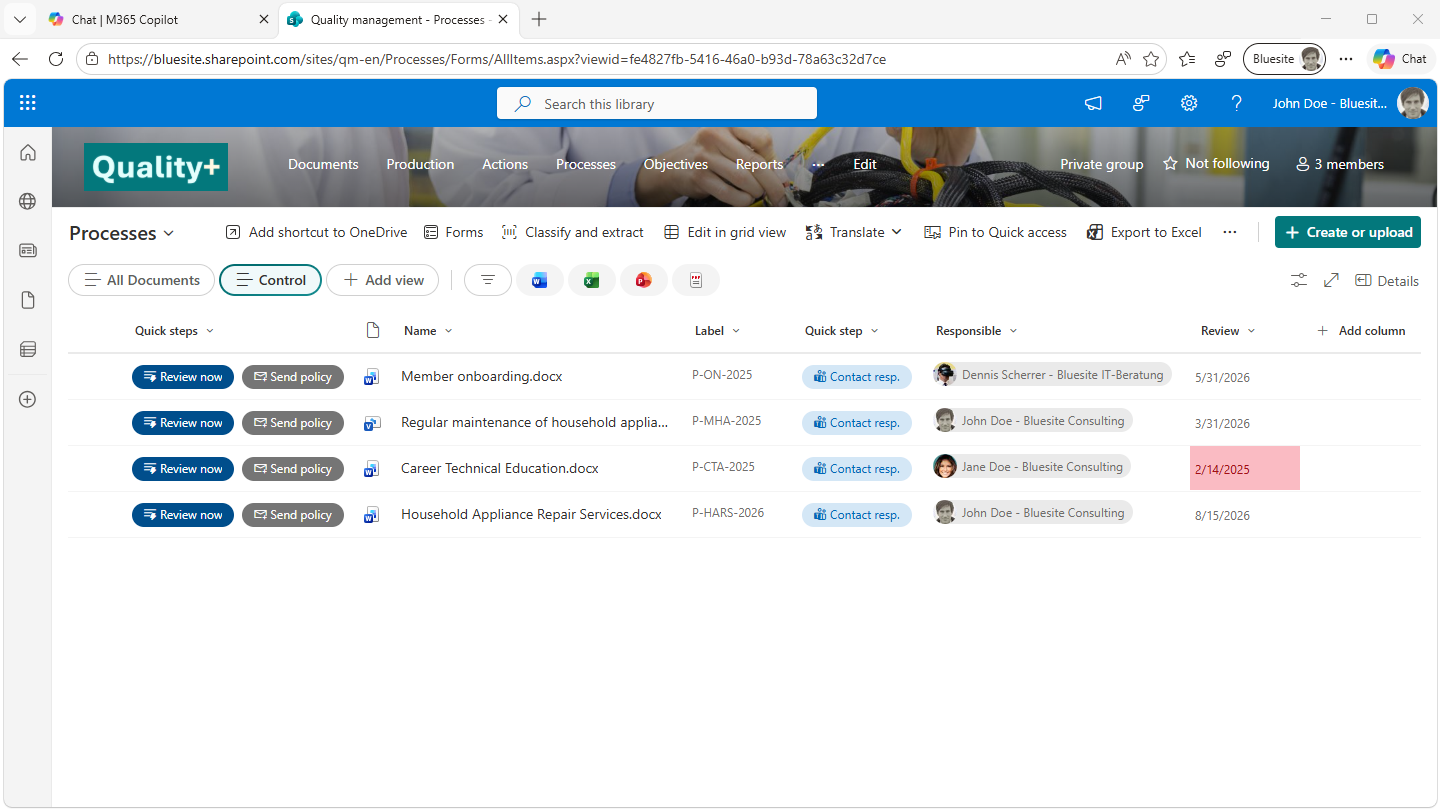
Starting February 2026, you can add quick step buttons in a dedicated column to your process repository, allowing users to access key actions instantly without navigating through the command bar menu. These buttons appear alongside each document entry, enabling quality management responsible to initiate tasks such as sending notifications, updating process descriptions, or reviewing documents with a single click directly from the list view. This enhancement significantly streamlines document control and improves day-to-day quality management efficiency.
Based on hands-on experience and practical testing, Bluesite Consulting recommends creating an alternate view specifically for controlling the process repository. Not every employee is responsible for managing or controlling processes; most users simply want to find and view the relevant process documentation quickly and without distraction. By implementing an alternate view for process control, organizations ensure that quality managers have the tools they need, while employees benefit from a clean and intuitive view tailored to their needs.
With this enhancement, Microsoft continues to strengthen document control capabilities in SharePoint, and combined with proven best practices from experienced consultants, organizations can build a more efficient and user-friendly quality management system.
Quick Step Samples for Document Control
Set Review Date and Notify for Immediate Document Review
Documentation must be reviewed on a regular basis (see section 7.5.2 “Creating and updating” of ASQ/ANSI/ISO 9001:2015). For this purpose, document libraries in SharePoint quality management systems by Bluesite Consulting include a “Review” column. In this column, users enter the date by which the document must be reviewed according to internal company rules.
If, for example, the conditions for a process or standard operation procedure change—such as recent technology, altered requirements, or relevant audit results—a prompt revision may be necessary. The quality management officer can set the review date to the current day and send an automatic email notification to the responsible person simply by clicking the “Review now” quick step button.
The “Review now” button, helps maintaining compliance with ASQ/ANSI/ISO 9001:2015, and reducing risks associated with outdated documentation. The following video demonstrates the “Review now” quick step button for process documentation and the email notification with the message: “Please review as soon as possible.”
Start Teams Chat with the Responsible Person
Quality management officers often need to contact the person responsible for process or procedure documentation, and Microsoft Teams Chat is a preferred channel for quick communication. The quick step “Contact resp.” launches a new conversation in Microsoft Teams with the individual listed in the “Responsible” column. A link to the relevant document is automatically inserted into the chat window, saving you the hassle of manually copying and pasting hyperlinks.
Send Responsible Person Documentation Quality Policy
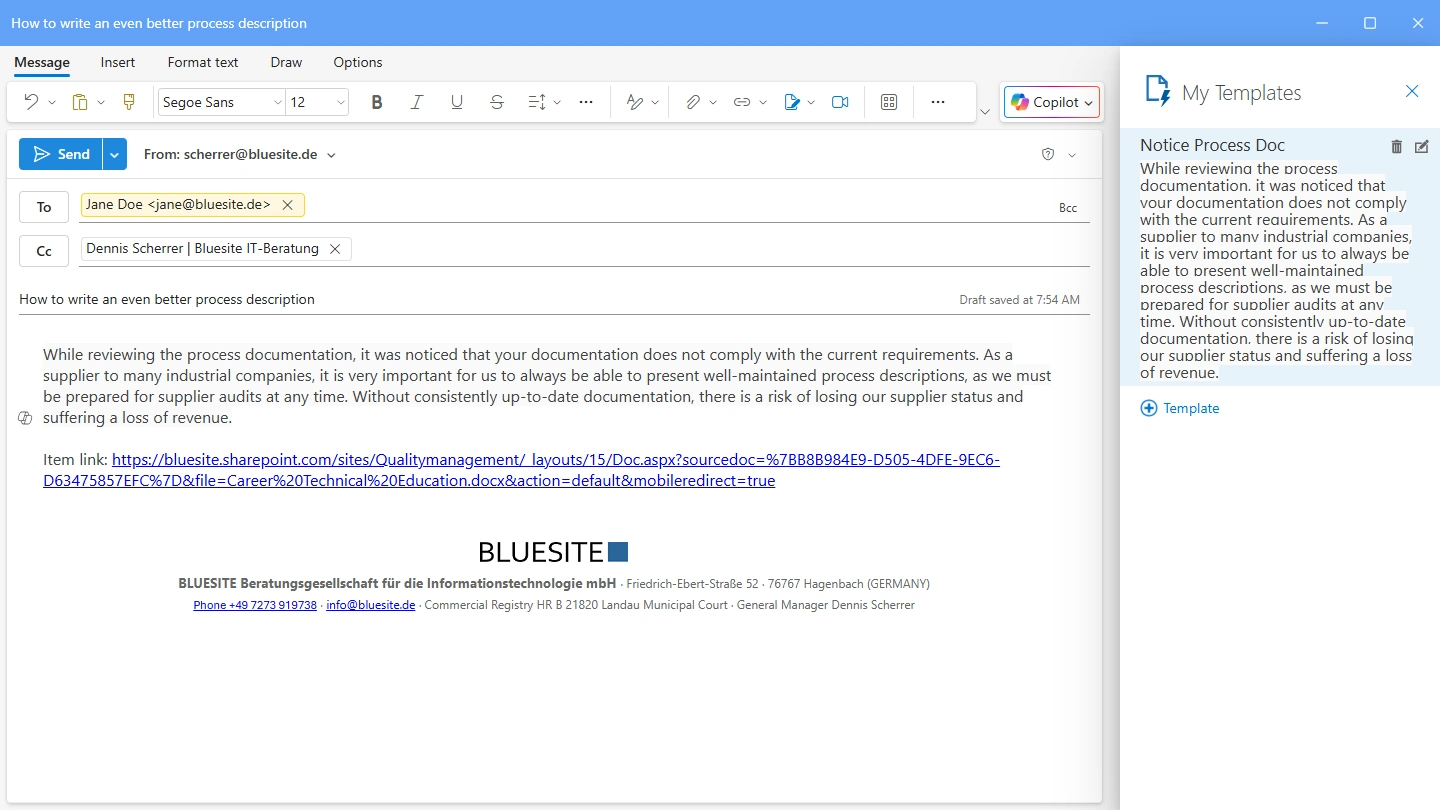
Responsible people need to review and update process documentation, standard operating procedures (SOP) and other documentation. This documentation must comply with internal policies and international standards. Quality management officers often need to share internal policies with the person responsible for a specific process or procedure. It is good practice to be prepared when they ask for links to policies! Using a fine combination of a SharePoint quick step and an Outlook template, you can answer in seconds.
These three steps are combined in one (1) click, by the SharePoint quick step “Send policy”:
- Create a new email.
- Add subject line to the new email.
- Copy and insert the link to the document in SharePoint to the new email.
In the email created by the SharePoint quick step, there are just two (2) clicks on the text template in Outlook:
Configuring SharePoint Quick Steps for Document Control
This article focuses on how SharePoint Quick Steps can be used for effective ISO 9001 document control.
Due to current Microsoft limitations, Quick Steps cannot be deployed automatically via the SharePoint QMS site template. They must be configured manually in each library or list.
For quality managers who want to implement these Quick Steps samples for document control, Bluesite Consulting provides a tested and up-to-date step‑by‑step configuration guide.
last update: March 2, 2026
Frequently asked questions about SharePoint Quick Step configuration
How to use the item link in the message body of a Quick step for actions like Draft an email or Start a Teams chat?
The item link that gets inserted when you enable "Include item link in message body" appears as plain text. Currently, you have to manually copy and paste the link into a new browser tab, which isn’t very convenient. It would be much better if you could simply click the link directly in your Teams message or email. We’ve recently shared feedback with Microsoft regarding this feature. If you’d like to support this request, please visit Create links for easy one-click access in Quick Links · Community, sign in, and cast your vote. Your participation can help bring more attention to this feedback and potentially influence future updates.
My quick steps are listed one below the other in the column; how can I display multiple quick steps side by side so that my list doesn't get so long?
You must select List in the Options menu of the document library. For newly created libraries, the Autofit height option is selected by default; with Autofit height enabled, the quick step buttons are displayed in a vertical arrangement. Don´t forget to click on Save view.
My colleague has created great quick steps in a library. I would like to set up a similar library—with the same quick steps—on another SharePoint site. How can I copy the quick steps?
When you create a new document library, choose the option From existing library, and select the library with the quick steps from your colleague; the quick steps are being copied. IT consultants at Bluesite Consulting tested this behavior in February 2026.
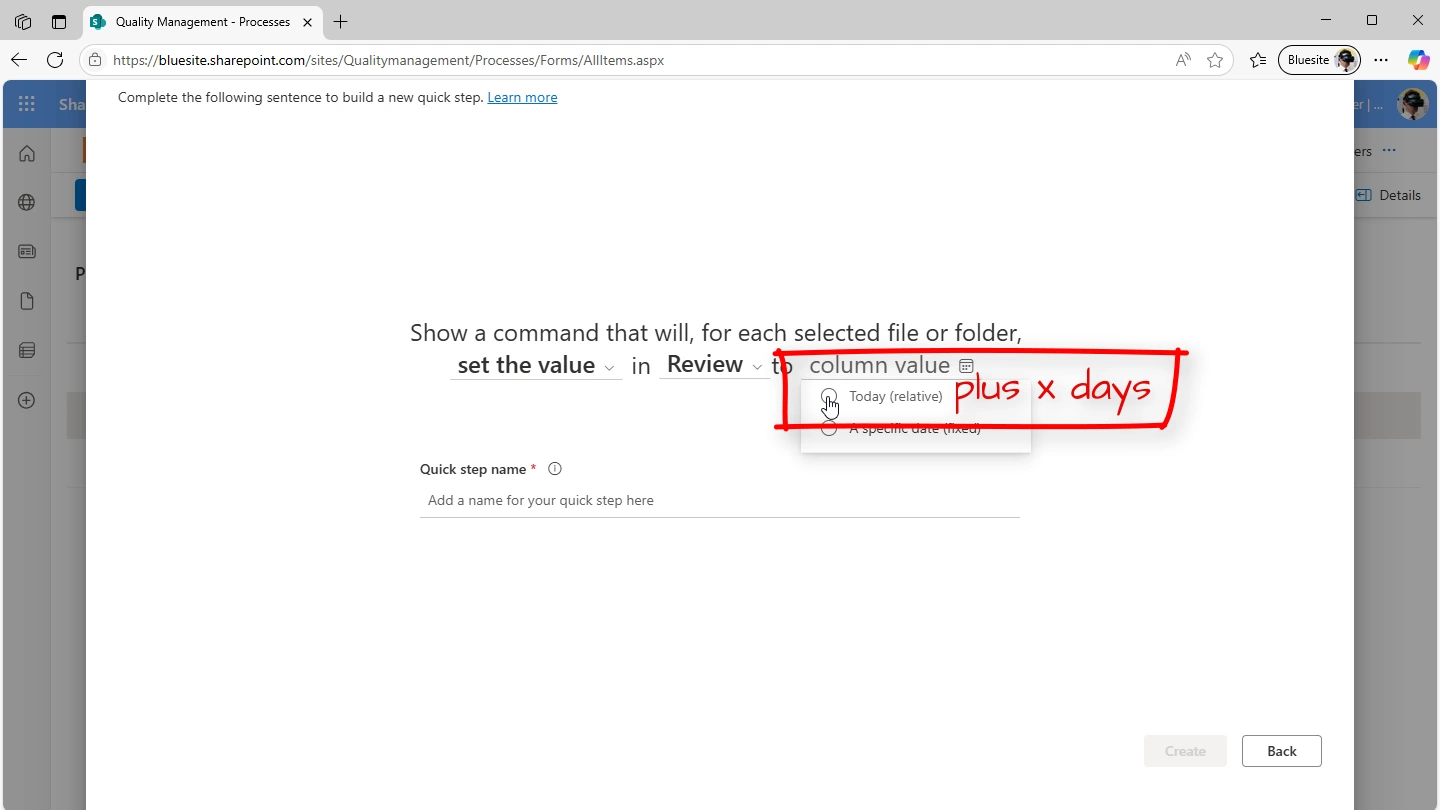
Setting the review date to today isn't ideal for our company. How can we use Quick Steps to set a deadline, such as “review within the next 10 days”?
This is unfortunately not possible at the moment. However, Bluesite Consulting has already submitted the idea to Microsoft to allow entering the date using a formula (for example: today plus 10 days).